Showing posts with label Buttons for Blogger. Show all posts

Add Paypal Donate Button to Blogger

If you want to make a few bucks from all the hard work you are putting into your Blogger blog then consider adding a Paypal donate button to your Blogger blog (Blogspot blog).

Paypal Donate ButtonAdding a donation button will encourage all those happy readers to say a big thank you for helping them out. Not everyone will donate but you will get the odd generous soul who will willingly donate some chump change to shout you a coffee.

In this Blogger tutorial we will be adding a gadget to the Blogger sidebar or alternatively you could place it in the foooter of your Blogger template. We will be using a widget to contain our Paypal Donate Button and will not be changing your Blogger template. If you wish to place the donate button into your Blogger posts see the end of this Blogger tutorial for details.

Skill level is rated easy.

How to Add a Paypal Donate Button to Blogger (Sidebar or Footer Gadget)
Note: Updated on January 20 2012 to take account of new Paypal interface

1. Get yourself a Paypal account if you don't already have one

2. Login to your Paypal account

3. Click on the Merchant Services tab

Select Paypal Merchant Services Tab
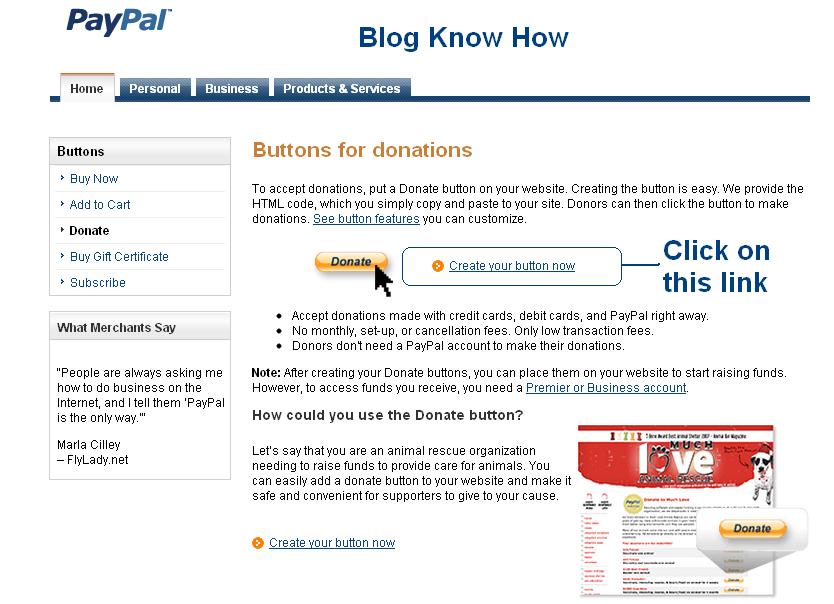
4. Choose Donations from the list of key features displayed in the right sidebar of the PayPal Website Payments Standard Option (first of 3 payment solutions)
Note Paypal have changed its interface. You now need to select PayPal Website Payments Standard from Merchant Services drop down and then under the buttons in option 1 you will see in pretty tiny writing I must say "There are also buttons for donations and gift certificates." Click on donations.

Select Donations link in Paypal from Paypal Website Payments Standard Options 1 to add a donations button to Blogger Blogspot blog

5. From the Paypal Create a Donation Button screen choose Create Your Button Now link (one of two).


6. Stick with the default button unless you wish to customize it

7. Choose your currency depending on your needs and location

8. Choose Donors enter their own contribution amount radio button unless you want to have a set amount

Paypal Create Button Steps
9. Ensure the Secure Merchant ID radio button is selected. This will prevent spammers getting hold of your email address

10. At Step 2 it is worth saving your button

11. At Step 3 Customize your checkout page by allowing donors to write a short comment by selecting the Yes radio button to special instructions to seller

12. Select the No radio button for Customer's Shipping Address

13. Select the Create Button button

14. Once Paypal creates the donate button code copy it by right clicking your mouse and choosing copy

15. Logout of Paypal

16. Login to Blogger if you are not already logged in

17. Go to Design > Page Elements

18. Click on the Add a Gadget link in the sidebar

19. Choose HTML/Javascript widget from the list provided

20. Paste the button code into the Content box of the dialog box that appears by placing the mouse inside the box and right clicking the mouse and then paste

21. Select a title like "Shout Me a Coffee Today!" or whatever you would like

22. Click on the Save button

23. Drag and drop your new donation gadget into the spot you want it to appear in

24. Click the Save button to ensure your changes are saved

25. Click View Blog to see your new donate button in the sidebar of your Blogger blog

26. Click on your new donate button and you will be taken to the Paypal Checkout screen

Paypal Checkout screen

Tips and Troubleshooting
  1. To Add a Paypal Donate Button to Blogger Posts
    The following instructions will add a Paypal Donate button to all new Blogger posts. Note previous posts will not be changed. You will need to hard code the button into your Blogger template to have the Paypal Donate button added to every Blogger post. (Please ask if you need help with this)
    1. Follow the directions (steps 1-16) as above to get your Paypal button code
    2. In Blogger go to Settings > Formatting
    3. Paste the Paypal Donate Button code into the Post Template box
    4. Save changes 
    5. Click on New Post to see that the code will be automatically inserted at the foot of each new post. (you will need to be in Edit Html mode to see the code)

  2. To Add a Paypal Donate Button to Individual Blogger Posts
    1. Follow the directions (steps 1-16) as above to get your Paypal button code
    2. In Blogger go to the post you wish to insert the button code into
    3. Insert the button code taking care to change all instances of double quotes to single quotes
    4. Save post and publish as normal. (If you have trouble with the preview post button in the old editor in Blogger click on compose and then edit html)


This Blogger tutorial has walked you through the steps needed to add a Paypal donate button to your Blogger blog (Blogspot blog) including how to configure your Paypal button at Paypal. I have covered adding the button as a sidebar gadget or footer gadget or alternatively added to Blogger posts. Have fun!


Read More

Tips to Add a Digg Button to Blogger Blogspot

Today's article discusses where to place a digg.com button on your Blogspot Blogger blog and shows you how to add an integrated digg button to your blog. The button allows your blog's visitors to digg posts from your blog and submit those articles to Digg.

What is Digg.com?
Digg is a social content site where readers submit stories, videos and images. Depending on interest and popularity articles are commented on by members. You can encourage your readers to digg your stories by adding a Digg button to your Blogger blog. The button will display a real time count of the number of times your post has been dugg.

Digg Large ButtonWhy Add a Digg Button to My Blogger Blogspot Blog?
Why would I want to add more buttons to my blog you may be wondering. Well there are a number of reasons why getting on board with Digg will be helpful to you in growing your blog.
  • Digg is a ready source of traffic that can drive visitors to your blog and it is too important to overlook. When visitors digg your stories it will encourage new readers to visit your blog.
  • Posts that have been submitted to Digg appear in search engine results so your blog will receive exposure.
  • A digg button will encourage visitors to submit your blog's content including images and video to Digg. This will encourage others to comment and write about your post and possibly link to it. 


What to Consider When Choosing to Add Digg to Your Blog
When adding a Digg button to your Blogger Blogspot blog there are some important considerations to think of before you get started. You will need to decide about:

  • Digg Compact ButtonThe look of the button to place on your blog as Digg gives you the option of several sizes to choose from. The look and feel of your blog will dictate what button you decide on.
  • What pages your Digg button will display on. Do you want it on the home page as well as the post pages for instance? I strongly advise that you place any integrated button only on post pages otherwise you will find the loading time of your homepage will be noticeably reduced.
  • What position to place the button in on your blog. Under the post title, beside the first paragraph, below the post are all common locations for a Digg button. Placing a button near the top of your posts can be a good ideas as visitors will see it as the page loads because the button will be above the fold ie the area that visitors see without having to scroll down. If you have a bunch of social media buttons at the bottom of your posts already you might want to include your Digg button in this sequence.


Can I Digg My Own Blog Content?
Yes. You most certainly can digg your own Blogger posts as this will get you a listing in Digg.


How to Add a Digg Button to Blogger Blogspot Blog
I am going to show you how to manually change your Blogger Blogspot template to include your Digg button. While this is not a difficult tweak you will be changing your template. Make sure you take care not to overwrite any code. My suggestion as always is back up first by downloading your template before beginning the addition of this code.

To add a large Digg button to appear next to the first paragraph in your Blogger Blogspot posts:


1. Login to your Blogger blog if not already logged in

2. Navigate to Layout > Edit HTML

3. Back up your template by downloading full template as a precaution

4. Check the Expand Widgets Template box

5. Find this line of code using CTRL + F

<p><data:post.body/></p>

6. Paste the Following code above <p><data:post.body/></p>

<!--Digg.com Button-->
<b:if cond='data:blog.pageType == &quot;item&quot;'>
<div style='float:right; margin-left:10px;'>
<script type='text/javascript'>
digg_url=&quot;<data:post.url/>&quot;;
</script>
<script src='http://digg.com/tools/diggthis.js' type='text/javascript'/>
</div></b:if>
<!--end Digg.com Button-->


7. Click on the Save Template button

8. Click on View Blog link and navigate to an individual post page. You will see your new digg button is only visible on the post page.


Customizing Your Digg Button Tips and Troubleshooting

  • To have the Digg button display on all pages not just the individual post pages remove this line:
    <b:if cond='data:blog.pageType == &quot;item&quot;'>

  • To have the Digg button aligned to the left instead of the right change this line from:
    <div style='float:right; margin-left:10px;'>

    to:
    <div style='float:left; margin-left:10px;'>

  • To replace the large button with the compact button replace the code in Step 6 with:
    <!--Digg.com Button-->
    <b:if cond='data:blog.pageType == &quot;item&quot;'>
    <div style='float:right; margin-left:10px;'>
    <script type='text/javascript'>
    digg_url=&quot;<data:post.url/>&quot;;
    digg_skin=&quot;compact&quot;;
    </script>
    <script src='http://digg.com/tools/diggthis.js' type='text/javascript'/>
    </div></b:if>
    <!--end Digg.com Button-->

  • To change the background color of the button from white to your own desired color add this line:
    digg_bgcolor=&quot;#ff9900amp;quot;;

    below this line:
    digg_url=&quot;<data:post.url/>&quot;;

    Note: Change the value #ff9900 to whatever hex color you would like.
  • To move the Digg button to below the post content instead of at the top paste the following code:
    <!--Digg.com Button-->
    <b:if cond='data:blog.pageType == &quot;item&quot;'>
    <div style='float:right; margin-left:10px;'>
    <script type='text/javascript'>
    digg_url=&quot;<data:post.url/>&quot;;
    digg_skin=&quot;compact&quot;;
    </script>
    <script src='http://digg.com/tools/diggthis.js' type='text/javascript'/>
    </div></b:if>
    <!--end Digg.com Button-->

    to the end of the section of code beginning with this line
    <div class='post-footer-line post-footer-line-2'>
    If you have a third post footer line then place this code after that block of code.

    Add Digg button after labels in post footer

    Add Digg Button to Below Blogger Blogspot Post Content


    In this tutorial you have learned about what Digg is and the benefits of adding an integrated Digg button to your Blogger Blogspot Blog. You have also learned about different placement options for your Digg button and been given step by step instructions on how to customize the Digg button to suit the needs of your blog.
  • Read More

    Add Printer Button or Link to Blogger Blogspot

    Today's article will show you how to add a print button or printer link to your Blogger Blogspot blog. The facility to print a hard copy of a post may be important to some visitors especially if you are like me and publish lengthy posts. Adding a printer button or link will add to your blog's functionality and user friendliness.
    The reason I am writing this article is in response to a reader who asked me how to print out posts without the sidebar showing up. All the suggested buttons and links print out the post only and not the sidebar, header or footer.

    This tutorial involves changing the template code but is not difficult as long as you follow these step by step instructions.

    How to Add a Custom Print Button to Your Blogger Blogspot Blog
    The following instructions will place a printer button on each individual page of your blog below the post. Only the blog article itself will be printed along with any comments. The sidebar will not be printed.

    Example of the printer button to be added: icons

    1. Log in to Blogger if not already logged in

    2. Navigate to Layout > Edit HTML

    3. Back up your template by downloading full template to your computer

    4. Check Expand Widgets Template

    5. Bring up the search toolbar by using CTRL + F

    6. Find this line by typing it into the search box:
    <p><data:post.body/></p>

    7. Now replace that line with the following code block:


    <!-- Add Printer Button by http://blogknowhow.blogspot.com/-->
    <span class='noprint'><p><data:post.body/></p></span>
    <b:if cond='data:blog.pageType == &quot;item&quot;'>
    <a href='javascript:window.print()'>
    <img src='http://i1020.photobucket.com/albums/af326/bookwise77/printer-button.gif'/></a></b:if>
    <!-- End Add Printer Button by http://blogknowhow.blogspot.com/-->

    8. Click on Save Template to save changes

    9. Click View Blog to see your button in action

    Note: If you want to change the printer icon to your own icon upload your image to a photo storage service like Photobucket and note the URL address of the icon. Now substitute the URL address of the existing image for your image by changing the line beginning with<img src='
    Change printer icon to this alternative printer icon icons

    So to change the printer image to another printer image the code would look like:


    <!-- Add Printer Button by http://blogknowhow.blogspot.com/-->
    <span class='noprint'><p><data:post.body/></p></span>
    <b:if cond='data:blog.pageType == &quot;item&quot;'>
    <a href='javascript:window.print()'><img src='http://i1020.photobucket.com/albums/af326/bookwise77/printer-button-2.gif'/></a></b:if>
    <!-- End Add Printer Button by http://blogknowhow.blogspot.com/-->


    How to Add a Printer Link to a Blogger Blogspot Blog
    You may not want a button and prefer to add a printer link instead. To do this you would follow steps 1 to 6 and then insert the following code instead of the code contained in step 7


    <!-- Add Printer Link by http://blogknowhow.blogspot.com/-->
    <p><span class='noprint'><data:post.body/></p></span>
    <b:if cond='data:blog.pageType == &quot;item&quot;'>
    <a href='javascript:window.print()'>Print this post</a>
    </b:if>
    <!-- End Add Printer Link by http://blogknowhow.blogspot.com/-->

    Save the changes to your template and then navigate to an individual post to see your link at the bottom of the post.


    How To Add a Combination of Printer Button and Link
    If you would like to display a printer button along with a link follow steps 1 to 6 and then insert the following code instead of the code contained in step 7


    <!-- Add Combined Printer Button and link by http://blogknowhow.blogspot.com/-->
    <span class='noprint'><p><data:post.body/></p></span>
    <b:if cond='data:blog.pageType == &quot;item&quot;'>
    <span style='background: url(http://i1020.photobucket.com/albums/af326/bookwise77/printer-button.gif) left no-repeat; padding-left: 28px;'>
    <a href='javascript:window.print()'>Print this post</a></span>
    </b:if>
    <!-- End Add Combined Printer Button and link by http://blogknowhow.blogspot.com/-->


    In this article I have shown you how to add a print button, a print link and a combined button and link to the bottom of your Blogger Blogspot posts. Enjoy!
    Read More

    Add Twitter Badge Button to Blogger

    In this tutorial you will learn how to add a Twitter badge aka Twitter button to your Blogger Blogspot blog to link your blog to your Twitter account. By adding a Twitter button you will give your readers the option to follow your blog on Twitter.

    Display a Twitter Icon in the Sidebar of Your Blogger Blog
    If you look at the top of the right sidebar you will notice that I have placed a Twitter icon with a link to my Twitter profile. Adding the Twitter badge and link is not difficult and requires no change to the template. We will simply be adding a gadget to the sidebar. I have assumed no knowledge of Blogger and widgets so that absolute Blogger beginners can follow this tutorial. 


    1. Login to Blogger if not already logged in

    2. Navigate to Layout > Page Elements

    3. Click on Add a Gadget in the sidebar or other location eg the footer if you prefer

    4. Select HTML/Javascript from the list of available gadgets

    5. Paste the following code into the content box depending on your choice of button:


    <a href="http://twitter.com/Your Profile"><img width="133" src="https://blogger.googleusercontent.com/img/b/R29vZ2xl/AVvXsEj9lm0Pl_RUm7mBv34xICH12hfnM4hKp-FZ9vQVEEpkkEIkr6DNqP_WylIqnYNoN5qiYBGRAlP2N067pLuH3aT-wysRyy6kgRFRTkNgYOYCMWR-TYQrNi9BPbzmE2GeVM6N4jBj8RPD76Q/s200/twitter-bar.gif" height="34" title="Follow Your Blog Name on Twitter"/></a><br/>


    <a href="http://twitter.com/Your Profile"><img width="199" src="https://blogger.googleusercontent.com/img/b/R29vZ2xl/AVvXsEi_jZELBXRyM9XE-kiccYwSfQLcO4FglM9MmgR5F1Coh6T1fU8xv2MzSlfHnZ6HOEZ5dDssMYlkOqPmgYltXXXgZxpohltRjIReomINZ6p3F6ZdDdQrqV7iAH22dvZDSBLp0nq20k9eiYM/s200/twitter-35a.png" height="42" title="Follow Your Blog Name on Twitter"/></a><br/>


    <a href="http://twitter.com/Your Profile"><img width="191" src="https://blogger.googleusercontent.com/img/b/R29vZ2xl/AVvXsEiuDb5t-2LqLkYXqQzIbIGoPMYo_VdFFNn3upIR7sMJTqAzRyHR-r-tGwY6eWz6ico7ixdSrqe-xdACnxW0RVR2lBa_2Q6lnfb9vcQyJ-cs99yUAOB2Js3C2OFlmSJYumWG5KTkNMXfuvs/s200/twitter-32a.png" height="58" title="Follow Your Blog Name on Twitter"/></a><br/>


    6. Change Your Profile to your own Twitter profile. For example:

    http://twitter.com/YourProfile

    to

    http://twitter.com/BlogWizz

    7. Substitute your blog name in the title for your own blog name

    title="Follow Your Blog Name on Twitter"

    to

    title="Follow Blog Know How on Twitter"

    8. Click on Save.

    9. Move your new Twitter widget to the desired location on your sidebar using drap and drop

    10. Click on View Blog to admire your new Twitter button


    In this tutorial you have learned how to add a Twitter button, badge, icon to your Blogger Blogspot blog so that readers can sign up to follow you on Twitter. I have supplied you with a choice of three different buttons to get you started. For more Twitter buttons try these free Twitter vector icons or these free Twitter graphics or just type Twitter icons into your favorite search engine 
    Read More

    Add a Twitter Followers Counter to Blogger

    In this tutorial you will learn how to place a Twitter Follower Counter on your Blogger Blogspot blog to display the number of followers you have on Twitter. A Twitter count button will encourage readers to follow you on Twitter much in the same way as putting a Feedburner subscriber counter on your blog will encourage new subscribers.

    How To Place a Twitter Followers Counter on Blogger

    1. Login to Blogger if not already logged in

    2. Navigate to Layout > Page Elements

    3. Click on the link to Add a Gadget to the sidebar or footer

    4. Select HTML/Javascript from the list of gadgets

    5. Paste the following script into the widget content box depending on the button your prefer:
    Standard Button
    <script type="text/javascript" language="javascript" src="http://twittercounter.com/embed/?username=yourTwitterusername"></script>


    Black Button
    Twitter Followers Counter Black Button
    <script type="text/javascript" language="javascript" src="http://twittercounter.com/embed/?username=yourTwitterusername&style=black"></script>


    Big Bird Button
    <script type="text/javascript" language="javascript" src="http://twittercounter.com/embed/?username=yourTwitterusername&style=bird"></script>


    If you would like to view more Twitter Counter badges you will find them at http://twittercounter.com/pages/buttons/

    6. Replace the username with your own Twitter username. For example my username is blogwizz so I would enter username=blogwizz. If you are not already a member of Twitter sign up is a breeze

    7. Enter a title for the widget if you wish

    8. Click Save

    9. Move your new widget into position on your sidebar by using Blogger's drag and drop feature

    10. Click the View Blog link to admire your new Twitter Followers Counter 


    In this tutorial you have learned how to put a Twitter Followers Counter on your Blogger Blogspot blog so that you can display an accurate count of your Twitter followers. This will encourage other readers to begin following you on Twitter.
    Read More

    Free Social Bookmark Buttons for Blogger

    One way to get your blog to grow is add social bookmarking buttons to your Blogger Blogspot blog. In an earlier article I wrote about the simplest way to place social media on a Blogger blog - that is to add an all-in-one Add This social bookmarking button

    However, as one size doesn't fit all situations there may be lots of times when you would prefer to add individual social bookmark buttons to your Blogger blog. That's why I have put together this list of useful free social bookmarking button sets. All are free to use on a personal blog and most have no restrictions for commercial use either but please do double check the license when you download them if you want to use the buttons commercially.

    Best Sources of Social Bookmarking Buttons for Blogger Blogspot

    128 Completely Free Icons Set
    128 Icons available in 48×48px. Includes Social Media Icons such as: Design Float, Digg, Delicious, Furl, Technorati, Flickr, Stumble Upon, Twitter & more…

    Web 2.0 Icons (23 icons)
    23 freeware “iPhone-like” icons sized from 512X512 to 16X16 pixels. Includes Blinklist, BlogMarks, Delicious, Digg, FaceBook, Favorite, Feeds, FeedBurner, Flickr, Furl, Google Magnolia, Misterwong, Myspace, Newsvine, Netvibes, Reddit, Simpy, Stumbleupon, Technorati, Twitter, Youtube.

    Socialize (12 icons)
    12 high quality, free icons in these sizes: 16x16px, 32x32px, 48x48px, 64x64px and 128x128px and 32-bit transparency PNG file format.

    Free Social Bookmark Icons for Blogger - Socialize Icon Set

    Handycons (12 icons)
    Handycons is a free, hand drawn social media icon set containing 12 icons. Package contains icons for del.icio.us, Digg, Mixx, DesignBump, StumbleUpon, Reddit, Developer Zone, DesignFloat, Technorati, Twitter and RSS feed & Email icon, of course. All icons are available in four sizes: 16x16, 24x24, 32x32 and 48x48 pixels. 

    Free Social Bookmark Icons for Blogger - Handycons


    Handycons 2 (20 icons)
    20 more hand drawn icons following on from the first Handycons set. Package contains Facebook, Blinklist, Feedburner, Flickr, FriendFeed, Furl, Gmail, Google, Heart icon, Last FM, Linked IN, Magnolia, Newsvine, PayPal, Skype, Sphinn, Twitter, Vimeo, Yahoo and You Tube icons. All icons come in four sizes: 16x16, 32x32, 64x64 and 12x128px. 

    Free Social Bookmark Icons for Blogger - Handycons2


    Social Media Icons (26 icons)
    26 clean looking free social media icons available for personal or commercial use.

    Aquaticus Social (30 icons)
    30 Web 2.0 social media icons in 4 sizes. Free to use on blogs. List includes popular icons like: Blogger, Delicious, Digg, Facebook, flickr, furl, Google, Ma.gnolia, Mixx, MySpace, NetVibes, NewsVine, Reddit, StumbleUpon, Technorati, Twitter, Yahoo!
    Aquaticus.Social by jwloh

    Aquaticus.Socialby jwloh

    Aquaticus.Social by ~jwloh on deviantART

    Social Me Icons (30 Icons)
    30 free iPhone-inspired icons that can be used on blogs and websites without restriction. 4 sizes up to 60x60px, 48x48px, 24x24px, 16x16px. List includes popular icons like: Blogger, Delicious, Digg, Facebook, flickr, furl, Google, Ma.gnolia, Mixx, MySpace, NetVibes, NewsVine, Reddit, StumbleUpon, Technorati, Twitter, Yahoo!

    Social.me by jwloh

    Social.meby jwloh


    Social.me by ~jwloh on deviantART


    Social Bookmark Iconset Pt I
    Free Social Bookmark Icons for Blogger - Social Bookmark Iconset

    Social Bookmark Iconset Pt II

    Free Social Bookmark Icons for Blogger - Social Bookmark Iconset Part II

    Ok so that's my current list of some of the best free social bookmark icons available on the net suitable for a Blogger Blogspot blog. This is a pretty extensive list to get you started but I will add more as time goes on and I come across other great sets. If you find what you are looking for here please let me know and if not I would be interested in that too. 
    Read More
    Designed ByBlogger Templates